Image Compressor
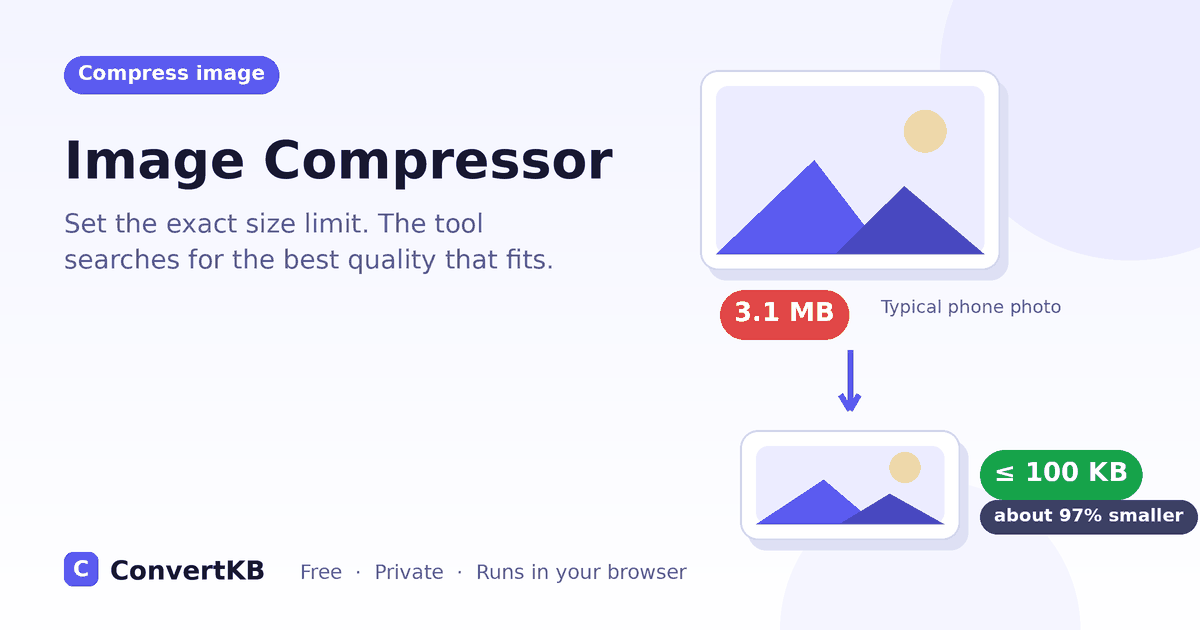
Choose a size limit and let ConvertKB find the best quality that fits. Works with JPG, PNG, WebP and HEIC photos from any phone or camera.
Pick a target size for your Image
Every common limit has its own page with tips and expectations for that size. Choose the one that matches your form, or use the size box above for any value.
How to compress an image
- Add your image: drop it in the box, click to browse, or paste with Ctrl+V.
- Crop or rotate if you need to. Keep “Fit to a maximum size” ticked and the maximum set to 100 KB.
- Press Compress image. The tool searches for the best quality that fits and shrinks dimensions only if it has to.
- Check the preview and the size badge, then download your file.
How the size search works
ConvertKB does not guess a quality number. It encodes the picture at several qualities, keeps the highest one that is under your limit, and only reduces pixel dimensions if even the lowest acceptable quality (40%) is still too big.
The target is set slightly under the limit (we use 1 KB = 1000 bytes) so portals that count 1024 bytes per KB also accept the file. The DPI value you choose is written into the file header, and for JPG you can pad up to a minimum size.
Quality, dimensions and what the tool decides for you
Two things control the size of a picture: how many pixels it has, and how hard each pixel is compressed. ConvertKB tries quality first and only reduces pixels when quality alone cannot reach the limit, because shrinking quality in small steps usually looks better than shrinking the picture.
A phone photo is typically 3 to 5 MB at 4000 × 3000 pixels. Cropping out empty space and reducing the pixel size to what a screen or form needs can cut the file by 90 percent before quality is touched, which is why the crop tool sits next to the size limit.
- Start with a crop: it removes bytes without any quality loss.
- Pick a size limit that matches your form, or leave it at 100 KB.
- Keep the original; compressing a copy of a copy adds loss.
- Use the exam or ID pages when your form is one of the listed ones.
Which output format should you choose?
If you are not sure what the portal wants, JPG is the safe choice: every government and corporate form accepts it, and it gives the smallest files for photographs and scans.
PNG is lossless, so it only makes sense for logos, screenshots with flat colour and anything needing transparency. WebP is smaller than JPG at the same quality but is rejected by many older upload forms.
- Photographs, signatures and scanned documents: choose JPG.
- Logos, icons and screenshots with sharp edges: choose PNG, then let the tool reduce colours if the size is tight.
- Your own website or app: WebP gives the best size for the quality.
- Not sure: keep JPG, check the portal message, and switch only if it refuses the file.
How the size target is set
The tool aims a few bytes under your limit, counting 1 KB as 1000 bytes. That is also under the 1024-byte figure, so the file passes whether a portal counts 1000 or 1024 bytes per KB.
Questions and answers
Why does my photo look different after compression?
JPG compression discards fine detail that the eye barely notices. The tool picks the highest quality that fits, so differences should be small unless the limit is very tight.
Which format gives the smallest file?
For photographs WebP is smallest, then JPG, then PNG. For flat graphics PNG with reduced colours can beat JPG.
Is my file uploaded anywhere?
No. Everything runs inside your browser tab using your own device. Nothing is sent to a ConvertKB server, and closing the tab clears the memory used.
Related tools
Nearby sizes and companion tools for the same job.
Compress Image to 10 KB
Compress an Image to under 10 KB for tiny signature and thumbnail fields. No upload, no signup.…
Compress Image to 20 KB
Compress an Image to under 20 KB for SSC, IBPS and state exam signatures. No upload, no signup.…
Compress Image to 30 KB
Compress an Image to under 30 KB for state board and scholarship portals. No upload, no signup.…
Compress Image to 40 KB
Compress an Image to under 40 KB for job-application photos and certificates. No upload, no…
Compress Image to 50 KB
Compress an Image to under 50 KB for PAN, passport-style photos and many exam forms. No upload,…
Compress Image to 100 KB
Compress an Image to under 100 KB for marksheets, ID proofs and school forms. No upload, no…
Compress Image to 150 KB
Compress an Image to under 150 KB for sharper ID scans and university uploads. No upload, no…
Compress Image to 200 KB
Compress an Image to under 200 KB for NEET-style photos and multi-page documents. No upload, no…